
2.1.2.3New Modbus ASCII Device
This will explain how to setup SimServe to act as a single Modbus ASCII slave device with default settings. In just a few minutes, SimServe will be ready to simulate a Modbus slave device for any Modbus master like a SCADA system or PLC. To setup the simulation, follow the steps below.
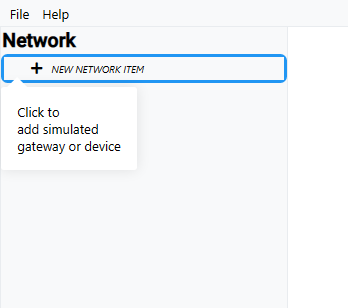
- Launch the SimServe web interface, and click on New Network Item in the network tree.
-
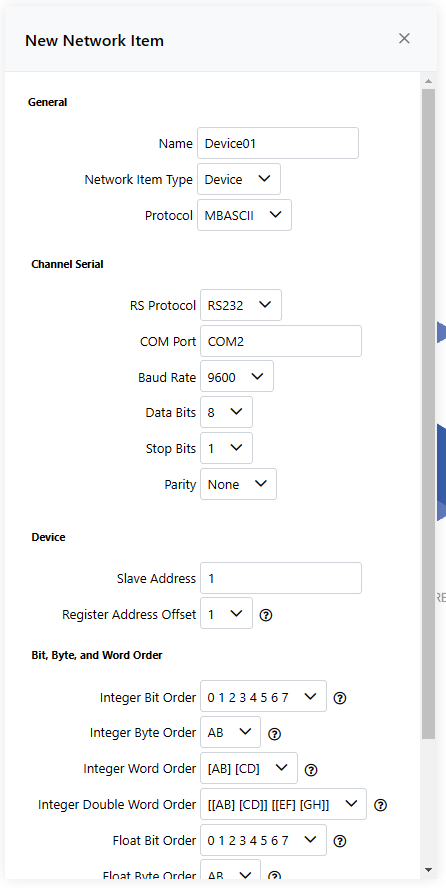
Fill out the New Network Item form as described below and click Save.
- Name — Enter any preferred name.
- Network Item Type — Select Device.
- Protocol — Select MBASCII.
- RS Protocol — Enter the RS protocol that's used by the real device. Most common is RS232 or RS485.
- COM Port — Enter the name of the COM port that exists on the computer running SimServe. To find the name of available COM ports, launch Device Manager and look under Ports (COM & LPT). The COM port should be named something like
COM2. EnterCOM2exactly as shown in the form. - Baud Rate — Enter the baud rate that's used by the real device. Most devices use 9600 by default.
- Data Bits — Enter the data bits that's used by the real device. Most devices use 8 by default.
- Stop Bits — Enter the stop bits that's used by the real device. Most devices use 1 by default.
- Parity — Enter the parity that's used by the real device. Most devices use none by default.
- Slave Address — Enter the slave address that's used by the real device.
- Remaining Fields — Leave as default.
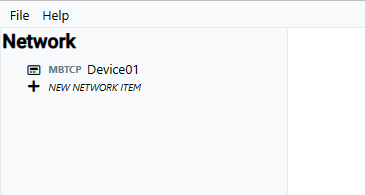
- The Modbus slave device will appear under the network tree. Double click the device to access its memory.
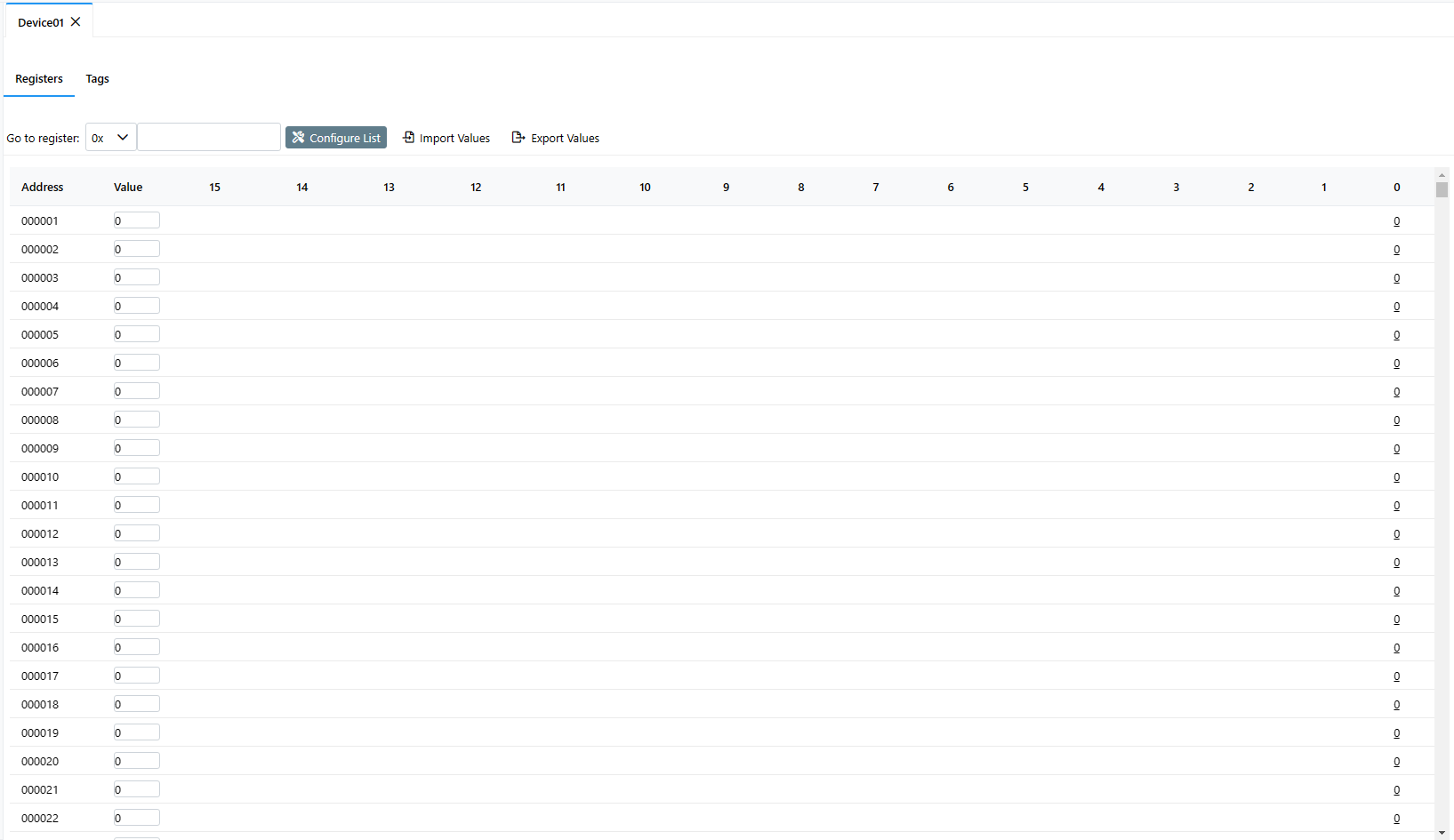
- By default, the device is configured with every possible Modbus register and its value can be modified by simply typing a new number in the value field. The value of each binary bit for the register is displayed as well, and clicking on the bit toggles its value.
SimServe is now actively simulating the Modbus device and will respond to requests from a Modbus master. Configure your Modbus master with the appropriate communication settings to connect with the device. For most Modbus masters, you'll need to enter the RS protocol, baud rate, data bits, stop bits, parity, and slave address that you assigned to the slave device in step 2. You may poll the Modbus slave device for any valid Modbus register.