1.1Installation and Activation
-
Download the SimServe installer from the SCADAmatic website here.
-
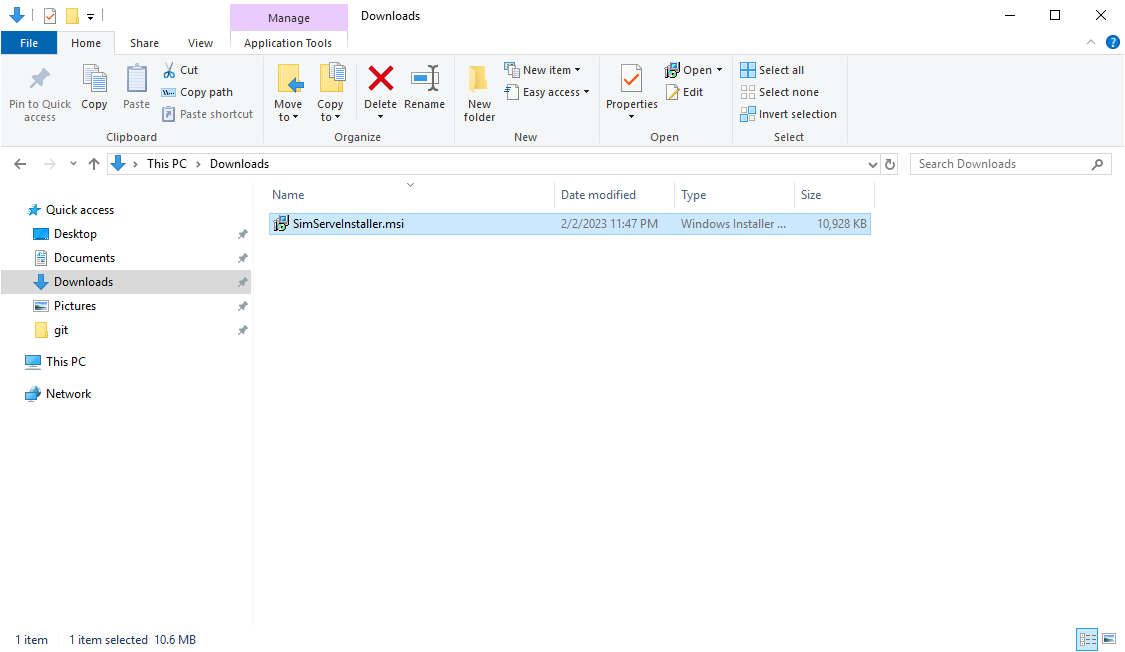
Double click the SimServe installer as shown below:
-
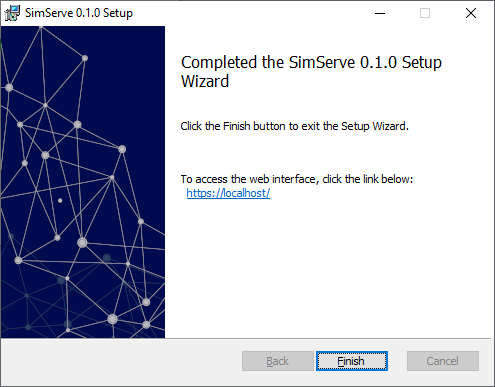
Follow the on screen instructions to complete installation:
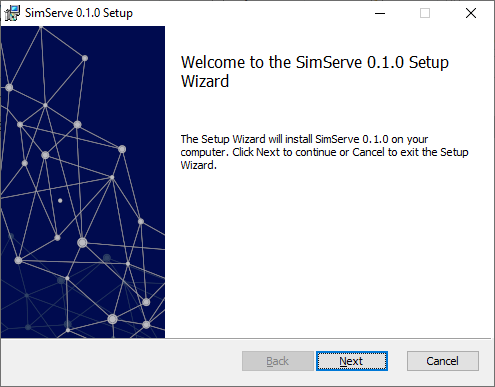
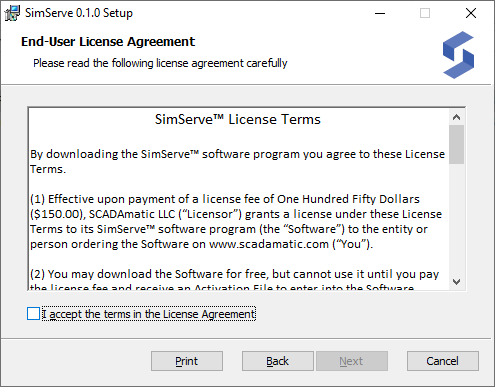
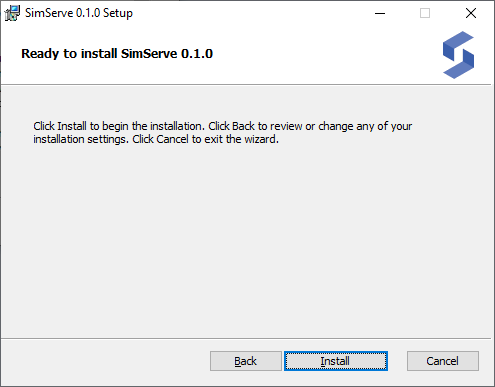
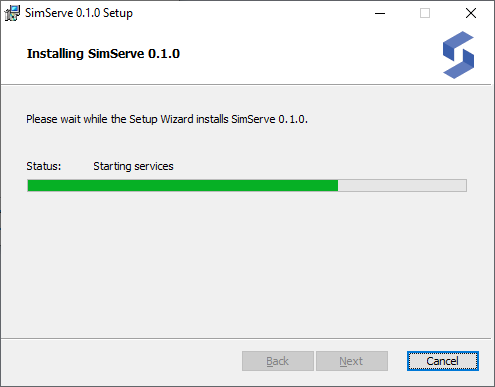
-
Launch an internet browser and browse to https://localhost/. The SimServe web interface will be displayed as shown below:

-
The web interface will indicate that the software is not activated. SimServe will not respond to any communication protocol requests until the software is activated. To activate the software, purchase a license from the SCADAmatic website per the following steps. If a license has already been purchased, skip to step 6.
- Go here and complete the online purchase process.
- Check your email for a message from SCADAmatic that contains an attached license file.
- Save the license file for software activation later.
-
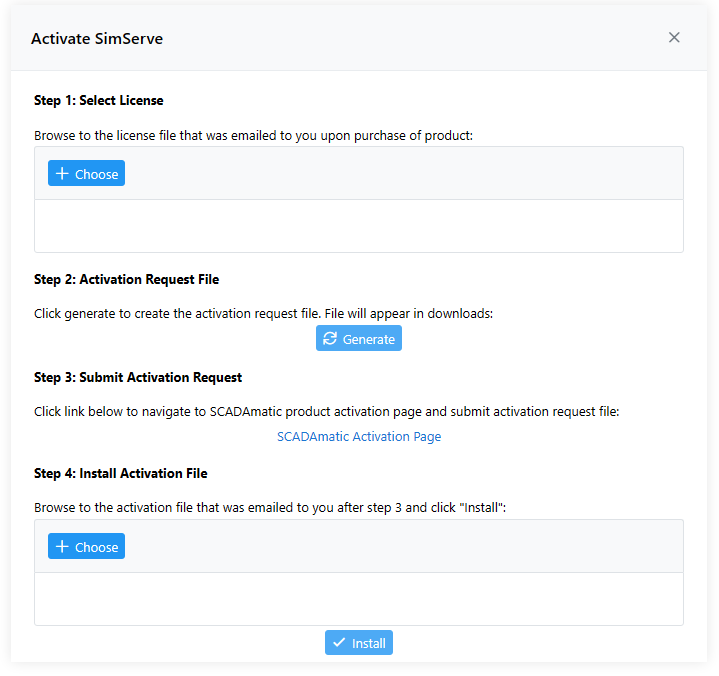
Click the link in the activation alert message at the bottom of the screen shown, and the "Activate SimServe" popup will appear:

-
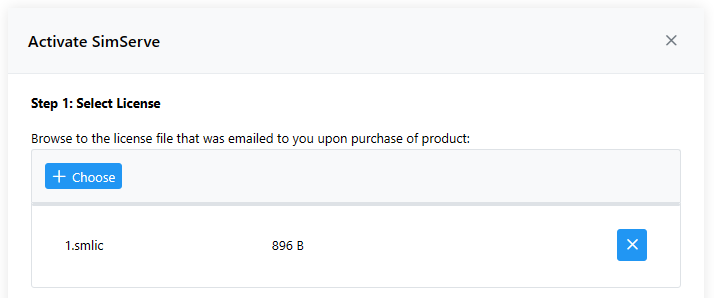
In step one, upload the license file that was emailed after purchase. The license file will have extension *.smlic
-
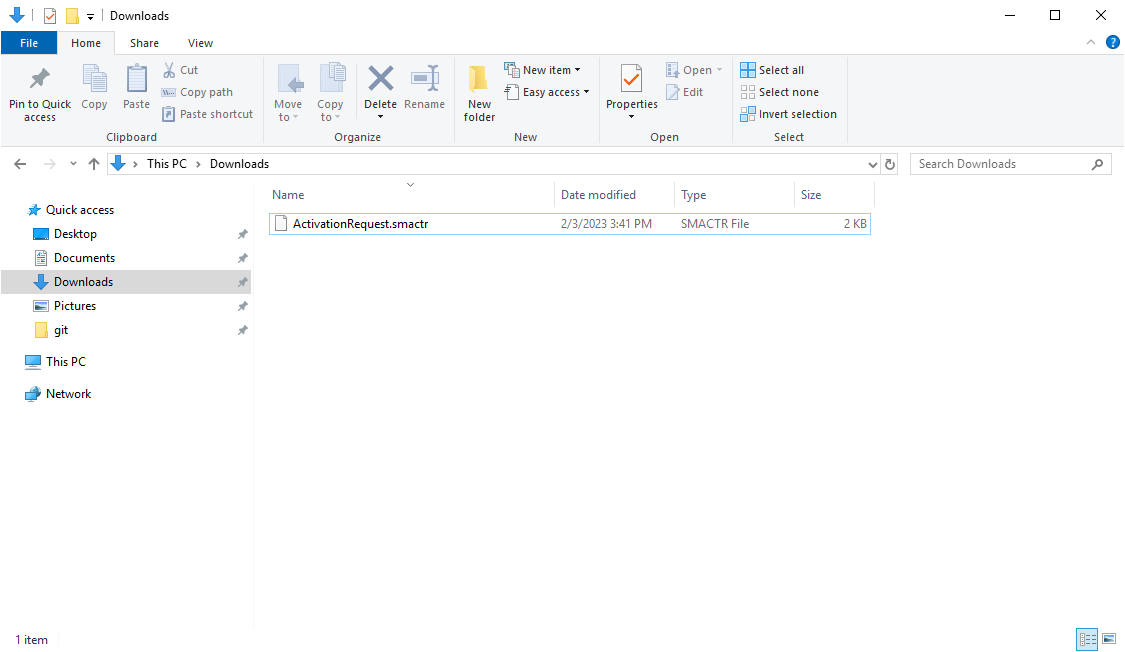
In step two, click the "Generate" button. An "activation request file" will be generated by SimServe and downloaded by your browser to your downloads folder as shown below.

-
In step three, click the link provided and the SCADAmatic activation page will be launched in a new tab.

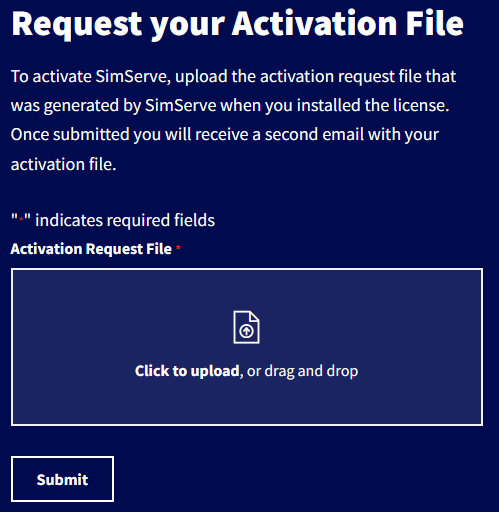
-
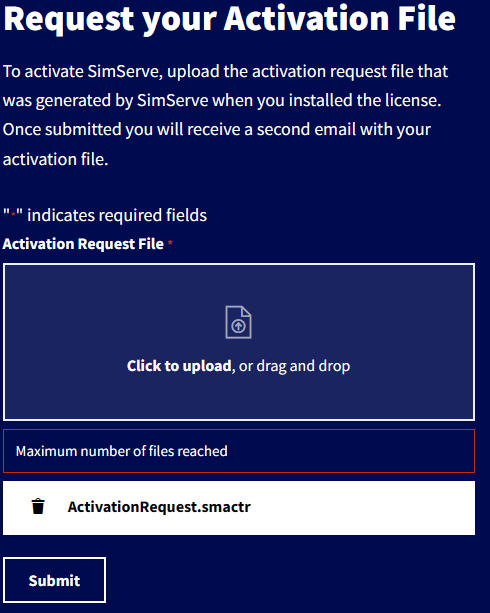
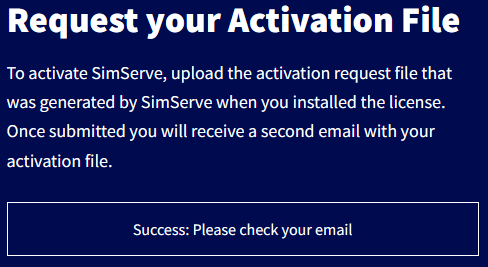
In the SCADAmatic Activation Page, upload the activation request file obtained from step 8. The file will end in extension *.smactr. Click the submit button after upload.