
1.2.2TLS Certificates
The SimServe web interface uses HTTPS, which requires SimServe to have access to a TLS certificate and private key. When SimServe is installed, it places a "self signed" TLS certificate and generated private key on the computer’s hard drive. Because the certificate is self signed, when browsers access the web interface, users will receive a warning that the authenticity of the web interface could not be verified. Users will be allowed to ignore this security warning, however some users would prefer to not see this warning at all. To prevent the warning from appearing, a certificate must be installed that is trusted by the user’s organization. This may be a self signed certificate that has been manually added to the browser’s trusted certificates, or it could be a TLS certificate generated by a trusted certificate authority like DigiCert. To install a custom TLS certificate and corresponding private key, follow the steps below:
-
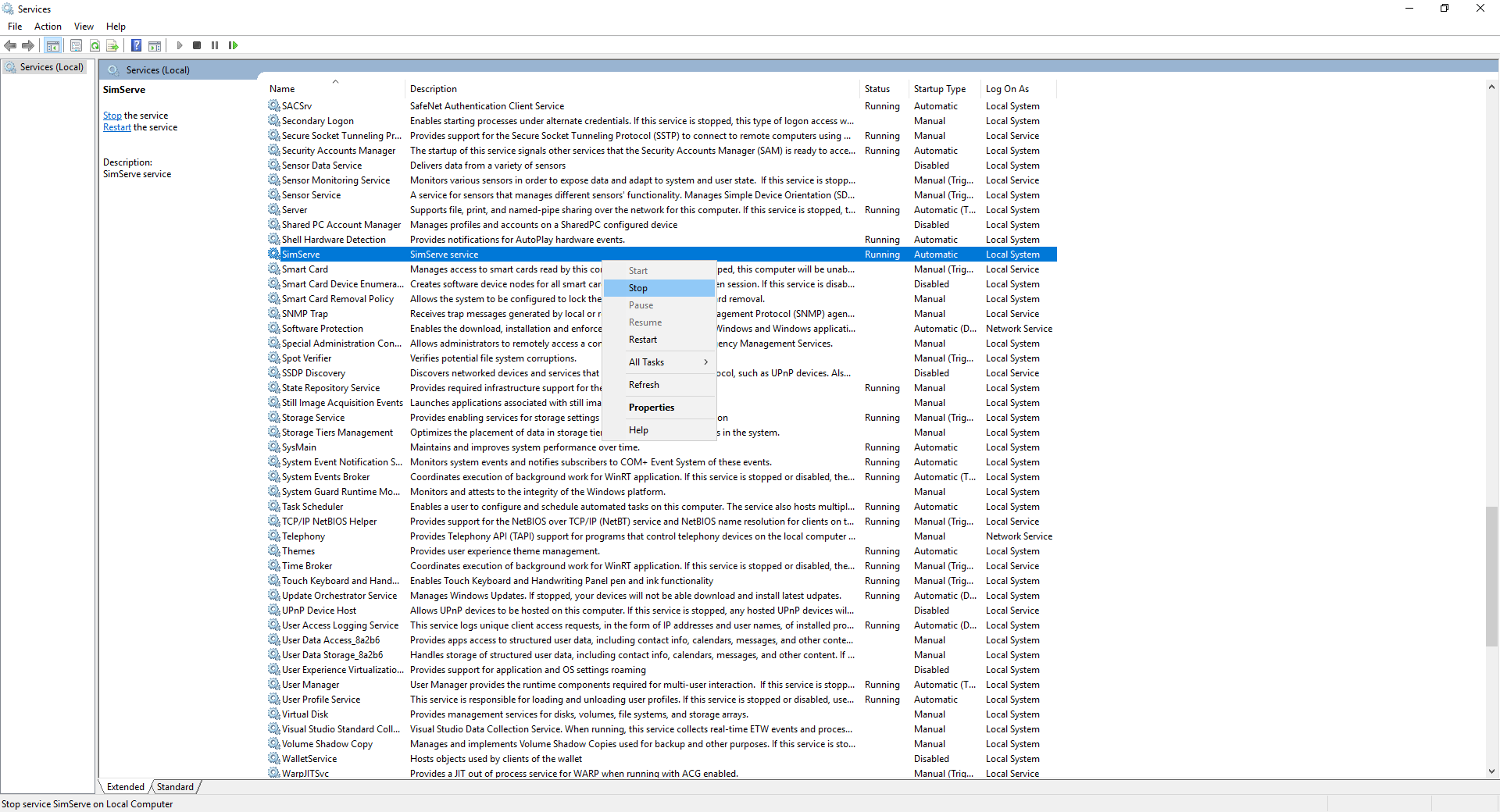
Open the Windows Service Control Manager and stop the SimServe service as shown.
-
Backup the cert.PEM and key.PEM files in "%ProgramFiles(x86)%\SCADAmatic\SimServe\TLS"
-
Generate a TLS certificate and corresponding private key that the user’s organization will trust. The certificate and private key must satisfy the following requirements:
Certificate Type X.509 Certificate Format PEM Certificate File Name cert.PEM Key Format PEM Key File Name key.PEM If you’re unfamiliar with certificate and private key generation, several sources are available online. Below is a sample command that can be used to generate a self signed TLS certificate/key pair using OpenSSL openssl req -nodes -new -x509 -keyout key.pem -out cert.pem
- Replace the old TLS certificate and private key in "%ProgramFiles(x86)%\SCADAmatic\SimServe\TLS" with the generated files in step 3.
- Open the Windows Service Control Manager and start the SimServe service.
- Open a browser and go to the SimServe web interface. Ensure everything is working properly. If not, restore the cert.PEM and key.PEM files backed up in step 2.