
1.2.1Web Interface IP and Port
SimServe hosts a web interface which must be bound to an IP address and port that’s available on the computer. By default, SimServe binds the web interface to all IP addresses on the computer. It uses port 80 to listen for HTTP traffic, and port 443 to listen for HTTPS traffic. Sometimes, the web interface must be bound to a specific IP address or the ports must be changed. This need typically arises when other software is installed on the computer that is already using the same IP addresses or ports as SimServe. If needed, the procedure below can be followed to change the web interface IP address, HTTP port, or HTTPS port.
-
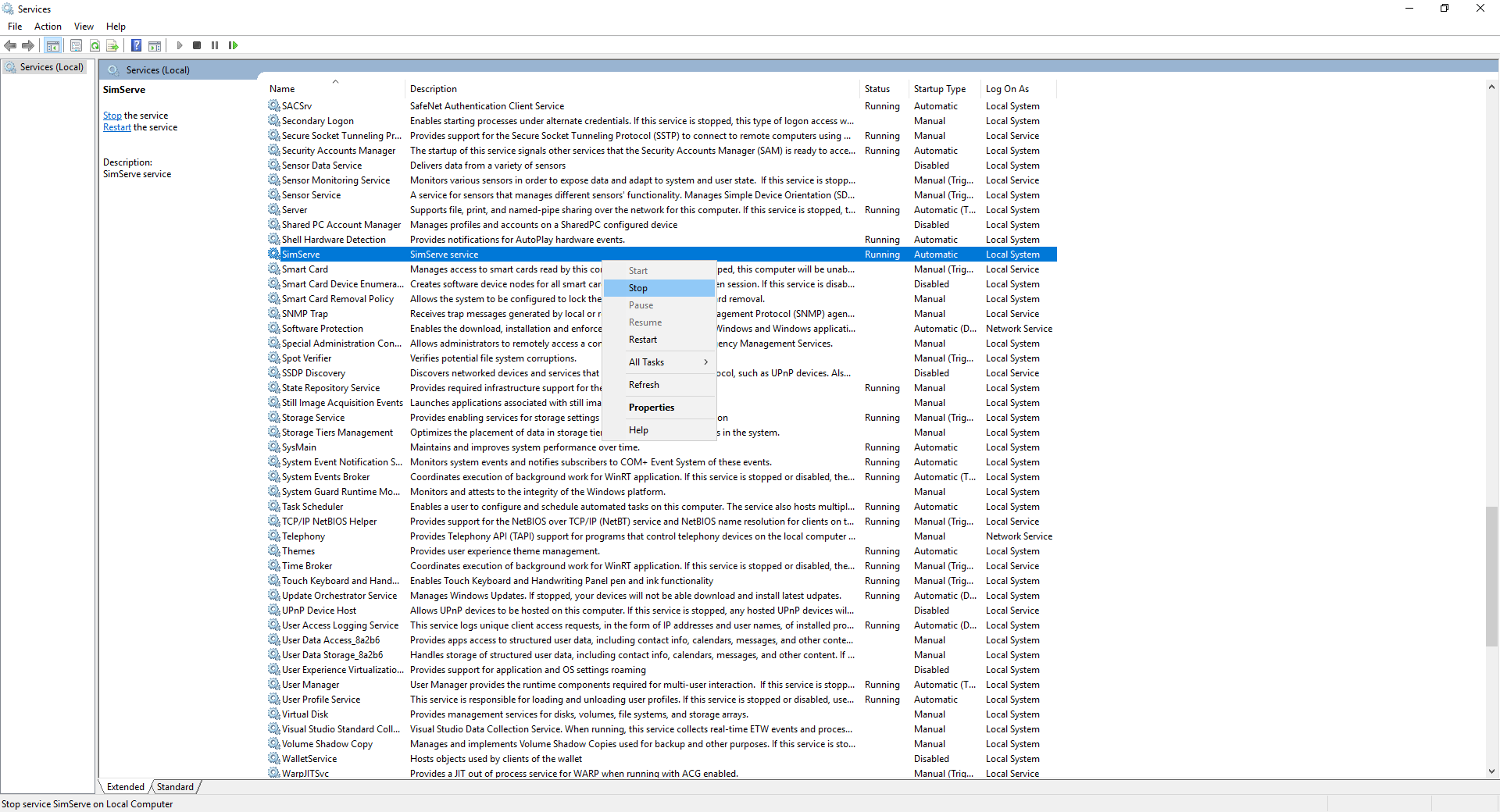
Open the Windows Service Control Manager and stop the SimServe service as shown.
-
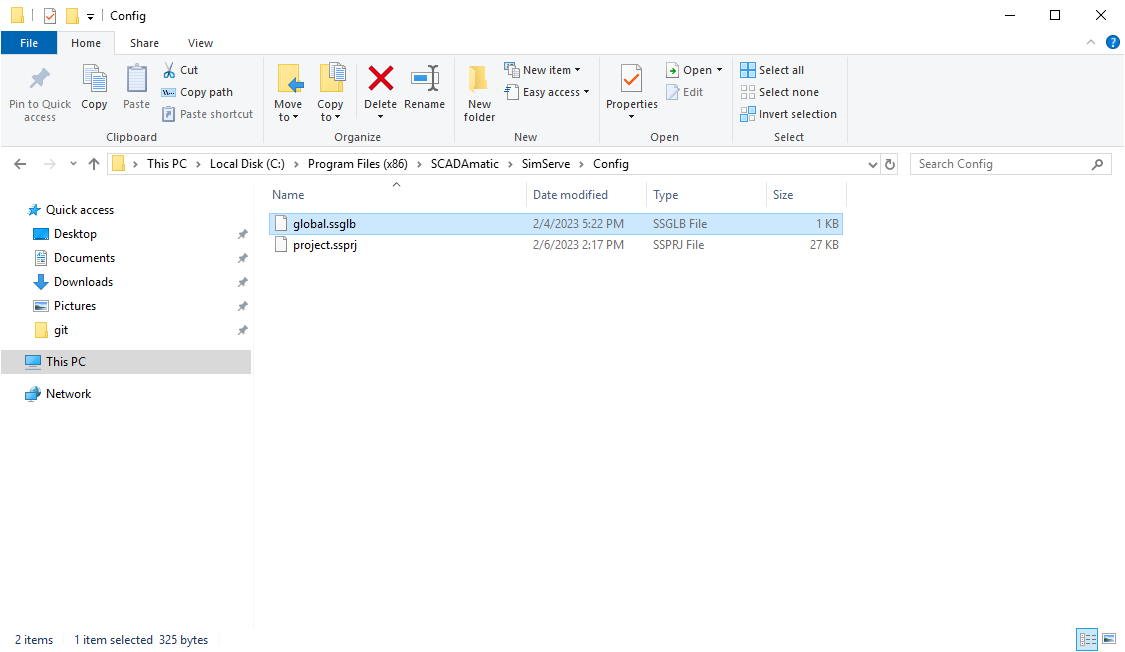
On the computer where SimServe is installed, navigate to "%ProgramFiles(x86)%\SCADAmatic\SimServe\Config" in the Windows file explorer.
-
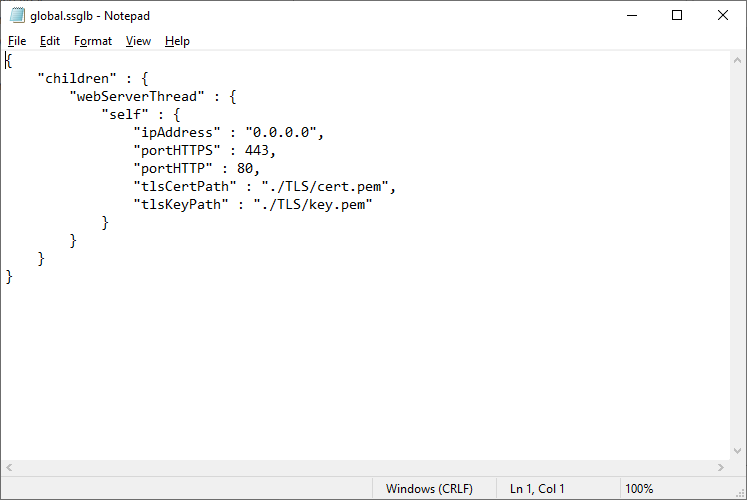
Open the file called "global.ssglb" using a text editor like Notepad.
-
Set "children.webServerThread.self.ipAddress" to the desired IP address. If you’d like to bind the web interface to all IP addresses on the computer, type in "0.0.0.0".
Please note, the IP address assigned to the web interface must also be added to a Windows network adapter. Please consult Windows documentation for instructions on how to do this.
-
Set "children.webServerThread.self.portHTTP" to the desired HTTP port.
Please note, the port entered must not be used by any other service running on this computer.
-
Set "children.webServerThread.self.portHTTPS" to the desired HTTPS port.
Please note, the port entered must not be used by any other service running on this computer.
-
Open the Windows Service Control Manager and start the SimServe service.